

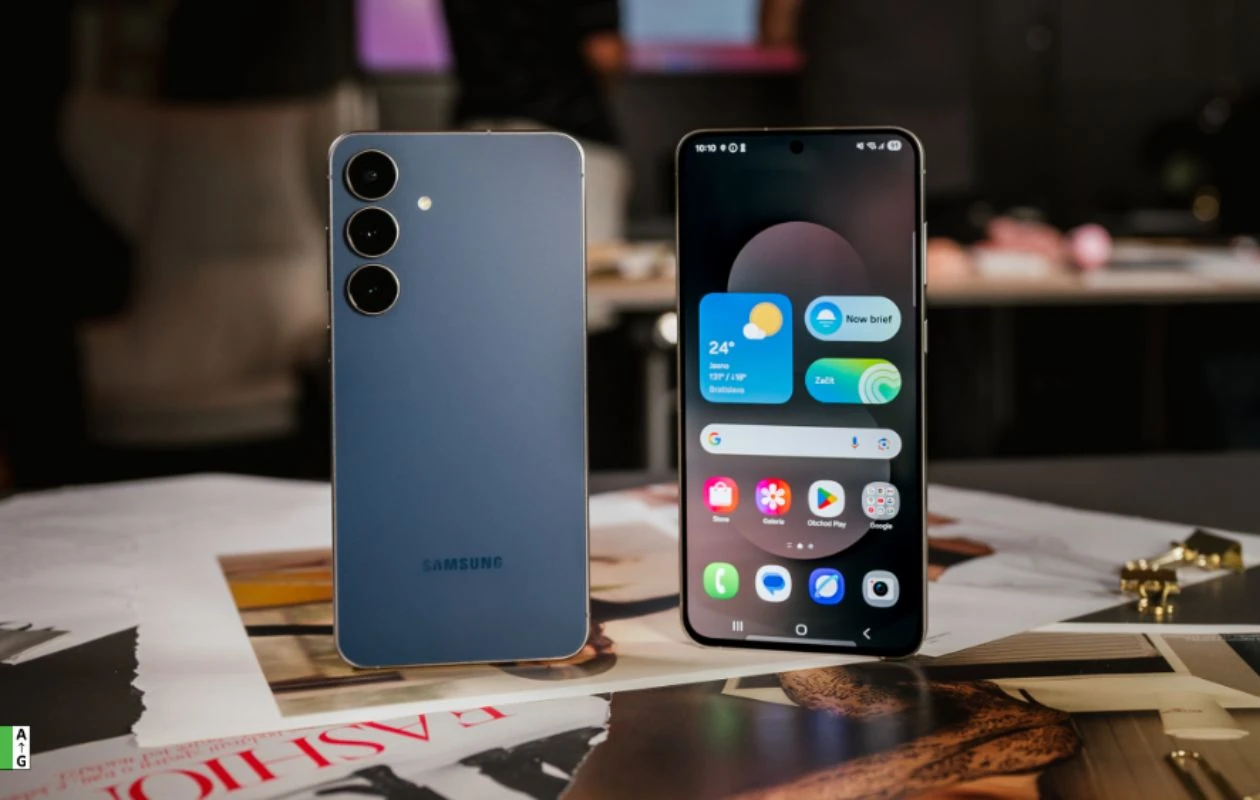
Android smartphones have come a long way when it comes to hardware, software, and features. There’s, however, one issue with all Android smartphones – bloatware. Yes, pre-installed third-party apps, also known as bloatware, have always been around on Android smartphones. There are a few apps that you can uninstall right away, but what about the other first-party apps or pre-installed ones that cannot be simply uninstalled?
Well, there are ways to get rid of those pre-installed first apps, and it’s quite easy. As long as you have the necessary apps and the time, getting rid of bloatware from your Android smartphone is simple and easy. Here’s our guide that shows you the different ways that you can follow to remove bloatware from your Android smartphone. Let’s get started.
Android Bloatware: Why Does It Exist?
Bloatware exists on smartphones for just one reason- money. You see, a lot of Android smartphones come with different types of bloatware. Some of it is the device’s first-party apps to compete with Google’s suite of apps. And other times, you will find third-party app stores or even social media apps. Device OEMs pre-install these apps because these app developers pay OEMs a sum of money, resulting in a decrease in the smartphone’s price tag.
Smartphones across the entry and midrange levels come with a ton of bloatware. Many users don’t like the fact that their smartphone comes with apps they would never use, occupy their device’s storage space, and always consume data to be updated to the latest version. This is why users want to get rid of the bloatware on their Android smartphones.
Thankfully, you can now remove such bloatware from your smartphone without needing root access on your Android smartphone.
Method 1: Uninstalling Apps
One of the simplest ways to get rid of bloatware on your Android smartphone is to uninstall it. You can easily remove a lot of third-party apps that fall under the categories of social media, games, and even streaming services. There are also a select number of Google apps and services that you can remove from your smartphone by just uninstalling them.
To uninstall these apps, simply long-press on the app icon on your home screen or app launcher and select the Uninstall option. Thai will remove the app from your device, and if you want, you can always reinstall it by downloading it from the Google Play Store.
Now, if you see an app that doesn’t have the Uninstall option, you can remove the following two methods listed below. And no, you do not need to have root access on your smartphone to remove these apps that are baked into your device’s operating system.
Method 2: Using ADB to Uninstall Apps
This method was one of the most popular methods that many Android smartphone users have used to get rid of bloatware from their smartphones. For this, you will need to have access to a PC and Platform Tools. You can download Platform Tools from the official Android Developers link.
Also, on your Android smartphone, download and install the Package Name Inspector app. This app is useful as it gives you the package names of all installed apps. You can use the package name to uninstall a particular app on your Android smartphone.
Once you have downloaded Platform Tools to your PC, it’s time to enable USB Debugging on your smartphone. Here are the steps
- Open the Settings app on your smartphone and select the About Phone option.
- Now tap 7 times on Build Number to enable Developer Options.
- Now, go to the Settings page and tap on Developer Options.
- Scroll and select USB Debugging. Make sure that the toggle is On.
Now, on your Windows PC, follow these steps:

- Extract the Platform Tools zip file to an easily memorable location.
- Now, open the extracted folder and right-click on a space in the folder and choose Open in Terminal.
- Now, connect your smartphone to your PC using the data cable.
- Select File Transfer or Media Transfer on your phone’s screen.
- Now, type in ./adb devices to start running Daemon.
- On your phone, select Allow when it asks to Allow UB Debugging from this computer.
- Now, type in /adb uninstall followed by the package name of the app that you want to uninstall.
- As an example, we will be uninstalling the YouTube app from my device, so the command will be /adb uninstall com.google.android.youtube
Method 3: Using Shizuku and Canta
While the previous method requires you to use a PC to uninstall bloatware from your Android smartphone, this third method will let you uninstall bloatware without the need for a PC. And yes, this can be done without the need for root access.
Download the Shizuku app from the Play Store
Download the Canta app from the Play Store
Once you have downloaded both apps to your Android smartphone, make sure that you have Developer Mode enabled on your phone. You can follow the steps that we have listed above if you haven’t enabled Developer Mode and USB debugging for your Android smartphone.
Here’s what you need to do to get the Shizuku app running.

- Launch the Shizuku app and tap on Pairing.
- Tap on the Developer Options and enable Wireless Debugging.
- Now, tap on Wireless Debugging and select Pair Device with pairing Code.
- A code will now be displayed.
- From the notifications panel of your phone, you will see a Shizuku notification.
- Tap on Enter Pairing Code to enter the code.
- Now, go back to the Shizuku app and tap on Start.
- The Shizuku service will now be active and running.
Now, follow these steps to use the Canta Debloater app.

- Launch the Canta Debloater app.
- You will see a list of apps on your screen.
- Select the app that you want to remove and tap on the red trash icon at the bottom right.
- The app will be uninstalled instantly.
- If you want, you can always choose to restore the app by tapping on the tab with the trash can icon.
You will see color codes in the Canta app. The green labels are apps you can remove without having to worry. The orange and yellow labels are apps that you need to be careful with, as removing these services might break certain functions of other apps. Meanwhile, the apps with the red label are not to be touched unless you know what you are removing or uninstalling from your smartphone.
Uninstall Bloatware on a Rooted Device
When you have a rooted Android smartphone, getting rid of bloatware and system apps is simple and easy. Thanks to a simple and easy-to-use tool called Universal Android Debloater, you can easily remove system apps with just a few taps. You will have to use your PC to run the ADB commands to get rid of the bloatware.
What Apps Should You Remove?
You can easily remove apps that you do not use, as well as carrier apps for devices that are locked to a particular carrier. You can remove system apps as long as you have another app that does the same functions. For example, if you remove the Clock app, you will have to install another clock app to use features such as alarms, a stopwatch, and a lap counter. Other apps, such as the stock messaging app, phone dialer, and even the Contacts app, can be removed if you use a device that has the Google version of the apps as well as your device’s OEM version of those apps.
Closing Thoughts
This concludes everything you need to know about how you can uninstall and remove bloatware from your Android-powered smartphone. If you haven’t tried to get rid of a few apps because the steps felt complicated, try using the Shizuku and Canta Debloater method, as it is the fastest and simplest way to remove apps that you don’t want.
Explore More:
