

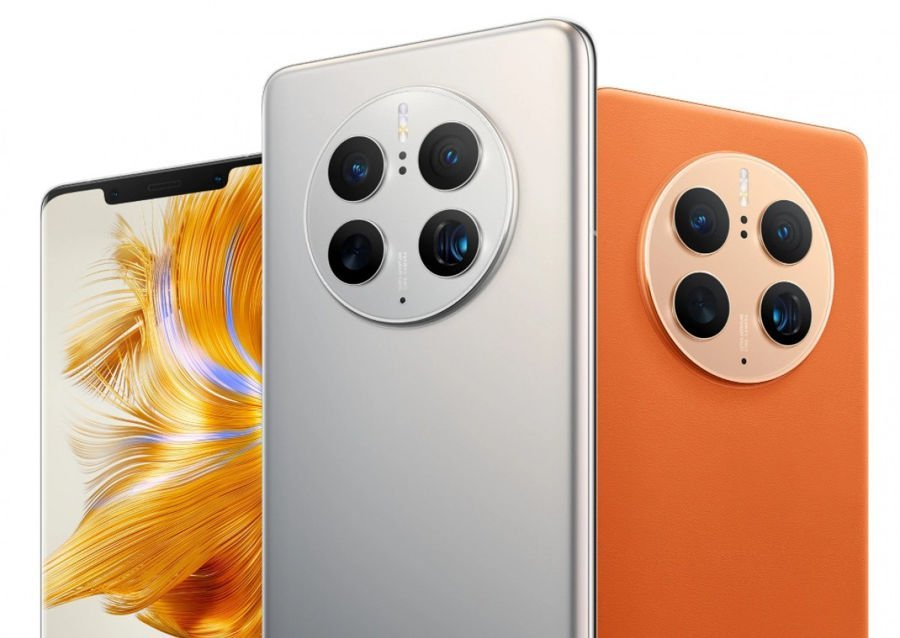
The Huawei Mate 50 Pro is a genuinely impressive phone. Great cameras, solid build, and powerful hardware under the hood. But if you picked one up outside of China, you already know the problem: no Google Play. Thanks to ongoing US sanctions, Huawei Mate 50 Google Play support isn’t something that comes out of the box. The good news is you can get it working yourself in about 20 minutes.
This guide works for the global variant of the Mate 50 Pro running EMUI 14.2 or newer. Check under Settings > About phone to confirm your version. Chinese models run HarmonyOS, so this method won’t apply there. Before you start, go to Settings > Security > More settings and enable “Install apps from external sources” for AppGallery. It’s also a good idea to back up your data just in case something goes wrong.
Setting up microG and Aurora Store
1. Install microG Services
- Open the Huawei AppGallery and search for “microG Services.”
- Tap Install. This will automatically download “microG Companion” as well.
- Wait for both apps to finish installing.
2. Grant microG permissions
- Go to Settings > Apps > Apps.
- Search for “microG Services” and tap on it.
- Tap Permissions and grant everything it asks for, including Location, Storage, and Phone access.
- Go back to the app list, find “microG Companion,” and grant it all the same permissions.
3. Sign in with your Google account
- Open the microG Services app from your app drawer.
- Tap the gear icon in the top right corner.
- Toggle on “Google device registration.”
- Tap “Add Google account,” then tap “Sign in” and enter your Google credentials.
Keep in mind you’re signing into Google through a third-party app here. MicroG is open-source and widely trusted in the Android community, but if that makes you uncomfortable, this method won’t be for you.
4. Install Aurora Store
- Head back to AppGallery and search for “Aurora Store.”
- Tap Install and wait for it to finish.
- Open Aurora Store and select “Session Installer” when prompted.
- Sign in anonymously or with your Google account.
Aurora Store works like an unofficial Play Store client, pulling apps directly from Google’s servers. From here, you can search for and download Google apps like Gmail, Maps, YouTube, and Chrome.
5. Verify everything is working
- Open microG Services and tap “Self-Check.”
- Make sure all items show green checkmarks. If anything is red, go back and grant those permissions.
- Download a Google app like Gmail to test that everything runs properly.
If apps aren’t behaving correctly, restart your Mate 50 Pro and double-check that microG has all its permissions. For Aurora Store issues, go to Settings > Apps > Aurora Store > Permissions and make sure everything is enabled.
Worth noting: Google Pay won’t work with this setup, as it requires security checks that need official Google services. Most other Google apps should run without issues.
If you own a different Huawei device, we also have guides for the Huawei P60, the Huawei P60 Pro, and the Huawei Pura 70. For older Huawei phones that don’t support EMUI 14.2, check out our Googlefier guide instead.
