

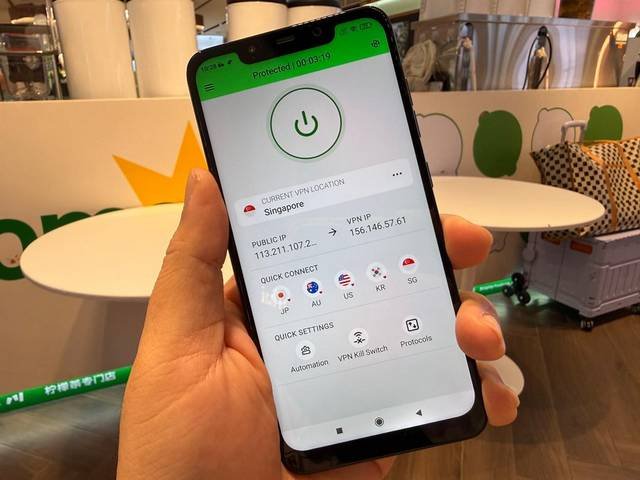
You’ve probably connected to public Wi-Fi at a coffee shop or airport without a second thought. Most people do. But those open networks are exactly where your data is most exposed, and your Android phone is constantly sending and receiving information. A VPN puts a private, encrypted tunnel around all of that traffic. Private Internet Access (PIA) is currently on sale, running as low as $2.03/month is one of the most well-known names in the space, and its Android app is surprisingly deep once you know where to look.
This guide covers everything from getting the app set up to the less obvious settings that most people never touch.
Getting started
The quickest way to get started is through the Google Play Store. Search for “Private Internet Access” and tap Install. PIA also offers a direct APK download from its website, but we’ll get to more on why that matters in a moment.
Once the app is installed, open it and sign in with the account you created during signup. If you’re not quite ready to commit to a paid subscription yet, don’t worry. PIA offers a 7-day free trial when you download through the Play Store.
After logging in, you’ll land on the main screen. There’s a large connect button front and center. Tap it and PIA will automatically connect you to the fastest available server based on your location. That’s all it takes for basic protection.
However, if for whatever reason you prefer to pick a server yourself, it’s pretty simple too:

- Tap the location bar just below the connect button.
- Browse or search from PIA’s list of servers across 91+ countries.
- Tap any location to set it as your active server.
- Hit the connect button.
PIA also lets you mark servers as favorites by tapping the star icon next to any location. Those then appear at the top of your list for quicker access. Just tap on any of them to change servers anytime you want.
Choosing the Right Protocol
Once you’re connected, one of the first settings worth adjusting is the VPN protocol. Think of the protocol as the engine under the hood. PIA on Android supports two options: WireGuard and OpenVPN.

WireGuard is the better pick for most people. It connects faster, uses less battery, and handles switching between Wi-Fi and mobile data without dropping the tunnel. It’s especially reliable on Android because of how it handles unstable or changing connections.
OpenVPN gives you more configuration options. You can switch between UDP and TCP transport, which matters if you’re on a network that blocks certain traffic types. TCP on port 443 tends to work even on restrictive networks like those at hotels or workplaces, because that port is the same one used by regular HTTPS web traffic.
To change your protocol: go to Settings → Protocols → Protocol. From there, select WireGuard or OpenVPN and adjust the transport settings underneath.
The Settings Most People Miss
PIA’s Android app has a lot packed into the Settings menu. These are the ones worth knowing.
Kill Switch

A kill switch cuts off your internet if the VPN connection drops unexpectedly. Without it, your real IP address can leak briefly before the VPN reconnects. PIA offers two versions:
- Standard Kill Switch: Blocks traffic only while the VPN is active but drops.
- Advanced Kill Switch (Android OS-level): Available under Settings > Network. This uses Android’s built-in “Always-on VPN” setting and blocks all traffic unless the VPN is connected, even after a reboot.
The advanced version is the safer option if privacy is the main reason you’re using a VPN.
Split Tunneling (Per App Settings)

Split tunneling lets you choose which apps go through the VPN and which ones use your regular connection. This is useful when you want your banking app to stay on your home network while everything else gets tunneled. Or the reverse: route only your browser and torrent client through PIA, and let everything else connect normally.
Find it under Settings > Per App Settings. You can either route specific apps through PIA or use inverse split tunneling, which sends all traffic through the VPN except for the apps you exclude.
If you aren’t sure which VPN features actually matter on a smartphone, split tunneling is one of the first ones to understand.
Automation

This is one of PIA’s quieter features. Automation lets you set rules for when the VPN should connect or disconnect based on the network you’re on. You can set your home Wi-Fi as “trusted,” which means PIA won’t connect automatically on that network. Any unfamiliar network, like a hotel or coffee shop Wi-Fi, will trigger an automatic connection.
Find it under Settings > Automation. Add your trusted networks there and PIA handles the rest without you having to think about it.
PIA MACE (APK Version Only)
MACE is PIA’s built-in ad and tracker blocker. It works at the DNS level, meaning it stops ad requests before they even load rather than hiding them after the fact. This makes pages load faster and reduces the amount of tracking data that leaves your device.
There’s a catch: MACE is only available if you install the APK directly from PIA’s website, not through the Google Play Store. This is a Google policy restriction, not a PIA limitation. To get MACE, download the APK from privateinternetaccess.com, install it manually, and then enable MACE under Settings > Privacy.
Home Screen Widget
PIA lets you add a widget to your Android home screen that shows your current connection status and lets you connect or disconnect with a single tap. This is a small thing, but it saves you from opening the full app every time. Long-press your home screen, tap Widgets, and look for the PIA widget.
When and why you should use PIA VPN
Public Wi-Fi
This is the most straightforward and obvious one: when you’re at coffee shops, airports, and hotel lobbies. This is because whenever you connect to a network you don’t control, your traffic is potentially visible to whoever runs or monitors that network.
PIA encrypts everything leaving your phone before it hits that network. Using a VPN on your phone is one of the simplest ways to protect your data and privacy while on the go. If you have Automation configured and setup properly, PIA can handle this automatically without you remembering to turn it on.
Streaming Geo-Restricted Content
PIA has servers in 91+ countries, and in the server list you’ll notice some locations labeled “streaming.” These are dedicated servers with IPs that PIA actively maintains and rotates to stay ahead of streaming platforms that block VPN traffic.
They’re also tuned for speed to cut down on buffering. For US content like Netflix, Hulu, Disney+, and Max, they work well. International libraries are less consistent since streaming services constantly update their detection. If a streaming server isn’t working, try reconnecting to get a fresh IP or switch to a different server in the same country.
Torrenting and P2P File Sharing
PIA allows peer-to-peer traffic on all its servers and supports port forwarding, which can improve download speeds on P2P apps. Enable port forwarding under Settings > Network > Request Port Forwarding. Pair that with split tunneling to route only your torrent client through PIA, and the rest of your traffic stays fast on your normal connection.
Avoiding ISP Throttling
Some internet providers slow down specific types of traffic like video streaming or large downloads. Because a VPN encrypts your traffic, your ISP can’t identify what kind of data you’re sending or receiving. That means, in theory, it shouldn’t be able to slow down those connections.
Traveling in Restrictive Regions
If you’re somewhere that blocks or restricts certain websites and apps, PIA’s obfuscation feature can help. It makes your VPN traffic look like regular web traffic, which helps it pass through network filters undetected. Enable it under Settings > Protocols > Use Shadowsocks (requires OpenVPN).
That being said, it’s worth noting that PIA’s own support team says it’s not guaranteed to work in China specifically. It may connect, but results are inconsistent. If China is your primary use case, that’s worth knowing before you commit.
Other things you should know
PIA runs on a verified no-logs policy, independently audited by Deloitte in 2024. The company also uses RAM-only servers, meaning no browsing data is ever written to a hard drive. Every PIA app, including the Android client, is open-source, so anyone can inspect the code. This is actually a very important consideration when it comes to VPNs. What’s the point of a VPN protecting your online presence and privacy if it keeps logs of what you’re doing, right?
Also, if you’re looking to protect yourself not just on your phone, one subscription covers unlimited devices. This means you can run PIA on your phone, tablet, laptop, and more all at the same time. But the cherry on top is that you can get in for just $2.03/month.
If you’ve been considering a VPN but held off because setup looked complicated, PIA’s Android app is one of the more user-friendly options out there. The default options are good enough for most people. However, there are also extra settings for more advanced users who might have specific needs.
