

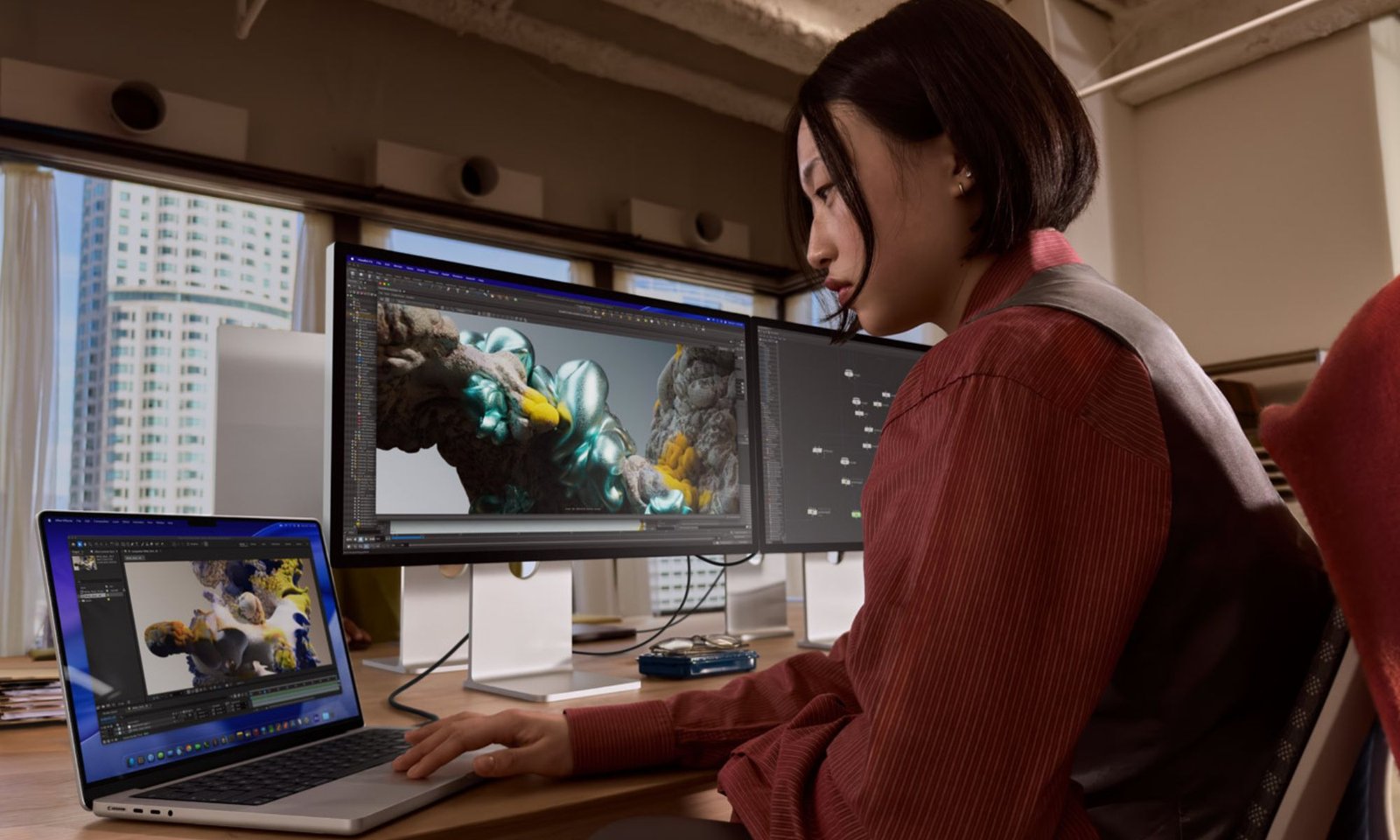
When you look for the best MacBook Pro for video editing in Final Cut Pro vs. Adobe Premiere Pro, you want a clear idea of which setup fits each app and how it handles your footage. You may already know Final Cut Pro works well for small projects and runs on Mac with strong Apple support, so a lower spec MacBook Pro can still handle your workflow without issues. But if your work runs on Adobe Premiere Pro, do you need to push every spec to the limit?
Related: Best Windows laptop for video editing to start a YouTube channel
Premiere Pro does demand more power and doesn’t match macOS in the same way. Still, you don’t have to settle or cut corners. I’ll walk you through the hardware needs for each software, point out the best MacBook Pro for each case, show where limits emerge, and share a bonus tip at the end.
Hardware requirements: Final Cut Pro vs. Adobe Premiere Pro
Apple’s video-editing application, Final Cut Pro, runs fast and keeps things smooth in many cases. It pushes through renders at a strong pace, even on big projects, and keeps the editing flow tight. That speed can drop when you stack many tracks or build a dense timeline.
Final Cut Pro takes up about 6.5 GB of storage and needs a modern system:
- macOS 15.6 or newer (so MacBooks from before 2018 won’t work)
- A Metal-ready graphics card on Intel Macs
- At least 8 GB of unified memory, though 16 GB makes more sense
Premiere Pro handles heavy projects and large media sets with more ease, even if render speed falls a bit behind. Adobe says that Premiere Pro supports the current and the previous version of each operating system. On macOS, you need version 12 or newer, along with:
- An Intel 6th-gen CPU or newer
- 8 GB of unified memory, though 16 GB or more makes a big difference
- 8 GB of storage space
- A 1280 × 800 display, with 1920 × 1080 or higher as a better fit
At times, Premiere Pro can hit some bugs. Some users report freezes during edits or odd export issues. Adobe rolls out updates often, and when things click, the software handles huge timelines, complex edits, and advanced effects with no trouble. Your GPU and CPU play a big role in how stable it feels. Lower-end machines tend to struggle more, so a stronger setup helps a lot.
Final Cut Pro feels more tuned for Mac hardware, since Apple builds it for its own system, especially with Apple Silicon. Premiere Pro targets both Windows and Mac users, so it can feel less tuned if you don’t set it up right. That’s why I lean toward more powerful MacBook Pro setups for Premiere Pro work.
I recommend the MacBook Pro with the Apple M5 Pro (18-core), which features a 3456 × 2234 display, 20-core M5 Pro graphics, 24 GB of memory, and a 2 TB SSD.
Best MacBook Pro for Final Cut Pro: MacBook Pro with M5 Pro

Apple MacBook Pro with M5 Pro
24 GB memory | 2 TB storage | 18-core CPU | 20-core GPU
Final Cut Pro taps into Mac hardware with ease, which leads to smooth performance. Because of that, you don’t need to push your budget too far.
I recommend the 14-inch MacBook Pro with the Apple M5 Pro (18-core), which includes a 3456 × 2234 display, 20-core M5 Pro graphics, 24 GB of memory, and a 2 TB SSD. That only covers part of the story.
The best video editing laptops bring three key traits: strong performance, long battery life, and a bright, vivid display. Most workstations last up to 7 hours under load, but the MacBook Pro with M5 Pro stands out as a rare exception since Apple moved to the M series chips. Based on what I’ve seen, the Apple MacBook Pro (M5 Pro, 2026) hits around 17 hours in web browsing tests.
I also like that the MacBook Pro with M5 Pro delivers up to 2x faster read and write speeds than the previous model, reaching up to 14.5 GB/s and speeding up workflows for editors who handle 4K and 8K footage.
Best MacBook Pro for Premiere Pro: MacBook Pro with M5 Max
Apple MacBook Pro with M5 Max
36 GB memory | 2 TB storage | 18-core CPU | 32-core GPU
Premiere Pro puts more pressure on system resources, especially with 4K or higher footage, which calls for stronger hardware. If you have a bigger budget and need a machine for intense workloads, the MacBook Pro with M5 Max stands as a great pick. It suits editors who work with 6K or 8K footage, including RAW formats.
The setup I suggest includes an 18-core CPU, a 32-core GPU, 36 GB of unified memory, and a 2 TB SSD. You get up to 5.4x faster video effects rendering in Blackmagic DaVinci Resolve Studio compared to the MacBook Pro with M1 Max, and up to 3x faster than the MacBook Pro with M4 Max, according to Apple. That should give you a sense of how the MacBook Pro with M5 Max handles your day-to-day work.
Upgrade considerations
If you want more headroom on a MacBook Pro with Apple M5 Pro, the 48 GB unified memory upgrade costs $400. It feels steep, but it makes more sense when you compare it to current memory prices. Still, each upgrade pushes you closer to the M5 Max price, so you need to keep that trade-off in mind. A 5–10 year plan for video editing does not match how software grows. I would not overthink it here. The machine will still run years from now, but around five years is where most people start to feel limits from newer software demands. Plan for that as your upgrade cycle, and treat extra time beyond that as a win.
With the MacBook Pro with M5 Max, a 64 GB upgrade makes sense if you deal with long timelines, large projects, or heavy RAW footage. Once you stack layers, effects, and push into 6K or 8K work, memory starts to shape how smooth things feel.
At 64 GB, you get more stable playback as timelines get heavier, fewer dropped frames, and less waiting during renders. It also gives you space to run other tools at the same time, like color grading or motion graphics apps, without the system feeling strained.
MacBook Pro configurations video editors should avoid
The 16-inch MacBook Pro with M5 Pro comes in at around 4.7 pounds, so it feels heavy for long carry use. It also drops the USB-A port, which means you’ll need a dongle for older accessories. Most video editors and creative professionals work best in quiet environments. I prefer that setup. I jump in when I need to share something or discuss a point. Outside of that, I keep the space quiet so I can stay focused.
Parting thoughts
You get fast, smooth results in Final Cut Pro on a MacBook Pro with M5 Pro, even when your specs sit in a midrange setup. Premiere Pro needs more power, so a MacBook Pro with M5 Max fits better when you push big timelines, effects, and heavy footage. Your current workflow should guide the choice, not some future setup you might never reach.
If you have the money, a top-tier MacBook Pro with the most CPU cores, fastest CPU speed, strongest GPU, and maximum unified memory works best. However, many independent editors don’t have that cash. So balance what you can afford and focus on components that shape your experience in each editing app.
