

There are three main catches you need to be aware of
Navigation apps – whether it’s Google Maps, Apple Maps, or Waze – consume a good amount of battery when used. That’s because they require constant GPS and internet access, and keep your smartphone display on so you can better follow your route. In fact, whenever I use Google Maps for navigation, I make sure my device is plugged into a power source to avoid draining all my smartphone’s juice just on navigation.
Follow these steps to enable this feature on the latest Google Pixel series:
- Open Google Maps, tap the profile icon in the top-right corner, and choose Settings
- Select Navigation
- Under the Driving Options section, turn on the toggle next to Power Saving Mode
- Start turn-by-turn navigation, then press the power button to activate Power Saving Mode in Google Maps
Your smartphone will then display a simple, low-power map on the lock screen, showing only the essential details, such as your next turn along the route.
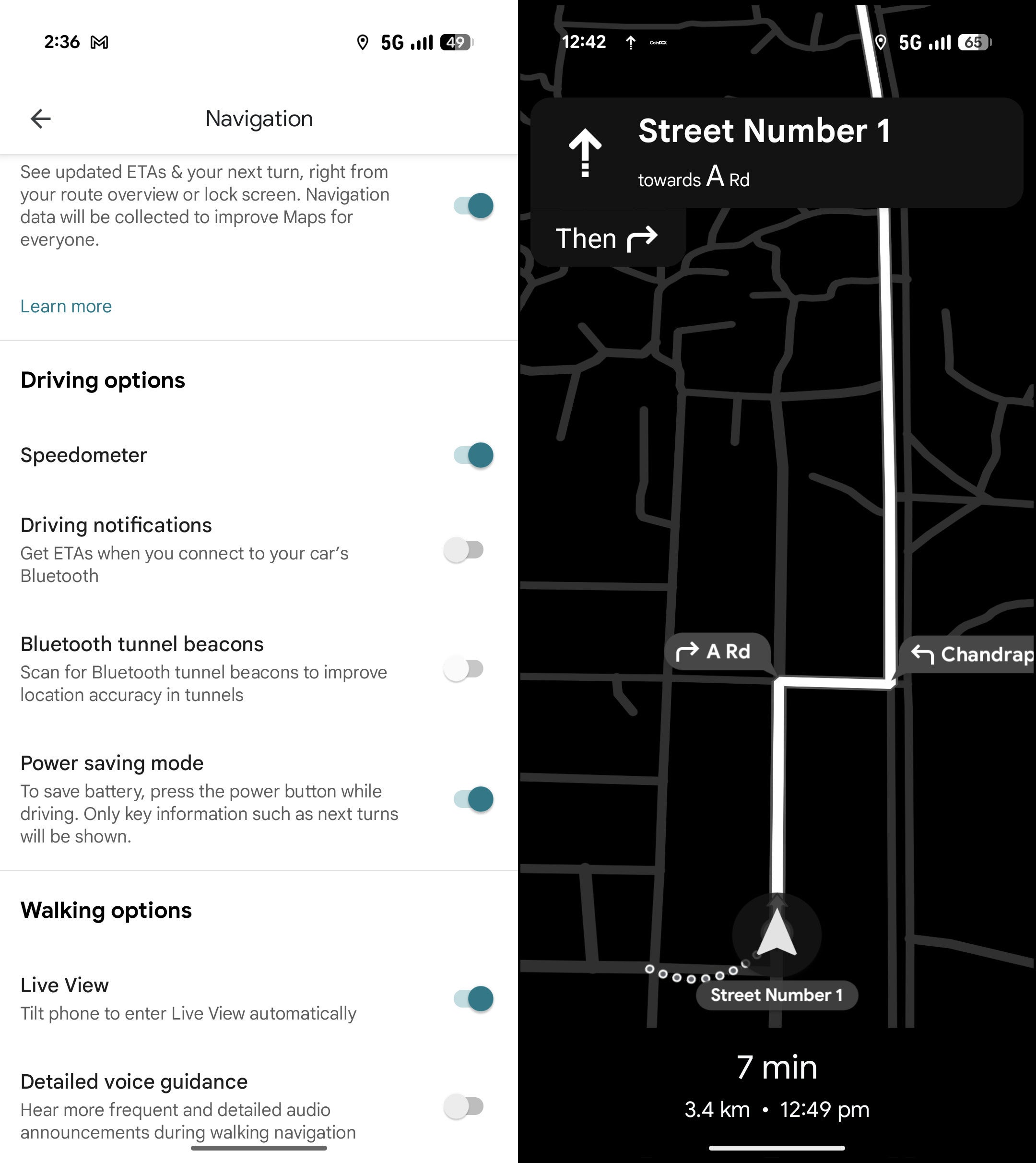
Power saving mode option in Google Maps. | Image by PhoneArena
Second, the feature is currently limited to driving mode, and it’s unclear why Google chose this approach. If you’re introducing a power saving feature, why restrict it to only one mode? Don’t users who navigate with Google Maps while jogging or riding a bike also want to save battery? We really hope this limitation is removed because it doesn’t make sense to confine such a useful concept to a specific navigation type.
Definitely a must-have feature
You also have the option to download offline maps. Although offline maps still require GPS access and keep your smartphone screen on, they do not need an internet connection like online maps. This can help your smartphone offer a better battery life compared to when you use online maps.
