

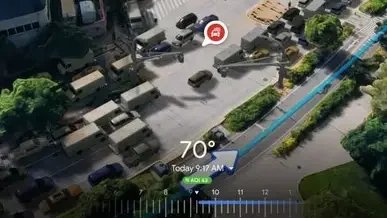
- A crash
- Traffic slowdown
- Police activity
- Construction
- Lane closure
- An object on the road
- Low visibility
- Flooded road
- Unplowed road
How to submit an accident report using the Google Maps app
To submit an incident report that everyone driving in the same area will see, while navigating to your destination, press the Report lozenge on the right side of the display and follow through by tapping on the appropriate button.
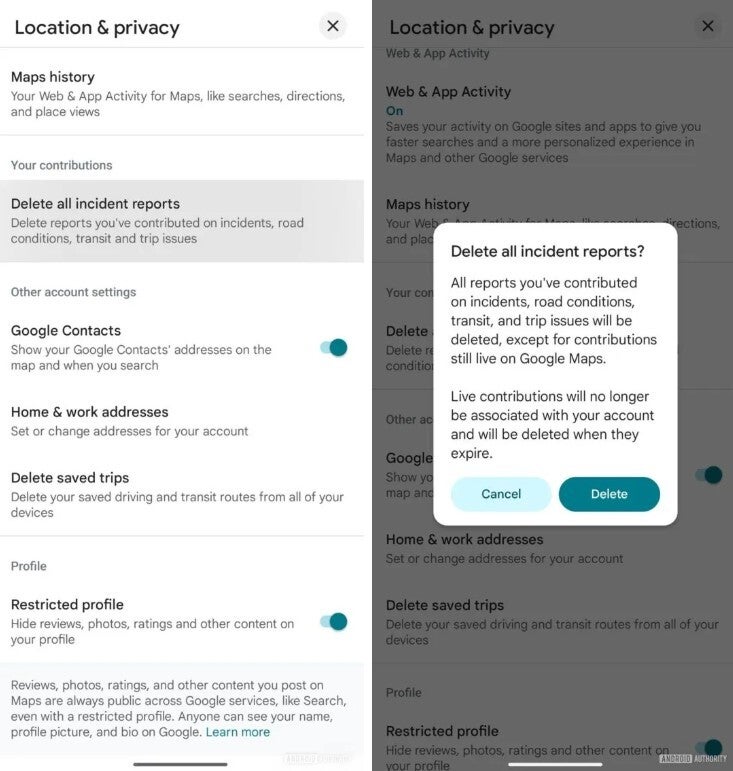
What the new feature to remove incident reports you’ve submitted on Google Maps might look like. | Image credit-AndroidAuthority
How to watch your Google Maps contributions leaving Google Maps now
When you follow those directions, you’ll see a prompt asking if you want to delete all of the incident reports you have contributed to Google Maps except for those contributions that are still live on Google Maps. Once those contributions expire, they no longer will be associated with your account and will be deleted. Google is also changing the profile header in the Contribute tab, trying to match the color theme below it. And the bio input box will only appear if you haven’t yet written a bio. You can write one by tapping on the Edit profile option.
These changes have yet to surface in Google Maps and hopefully they will be around soon. I do wonder how many of you actually take the time to submit an incident report while in the middle of navigating your way through heavy rush hour traffic. Without a delete button, incident reports can “fade” over time as they are confirmed or denied by other users. But that could soon change thanks to the code found in Google Maps v26.04.01.
