

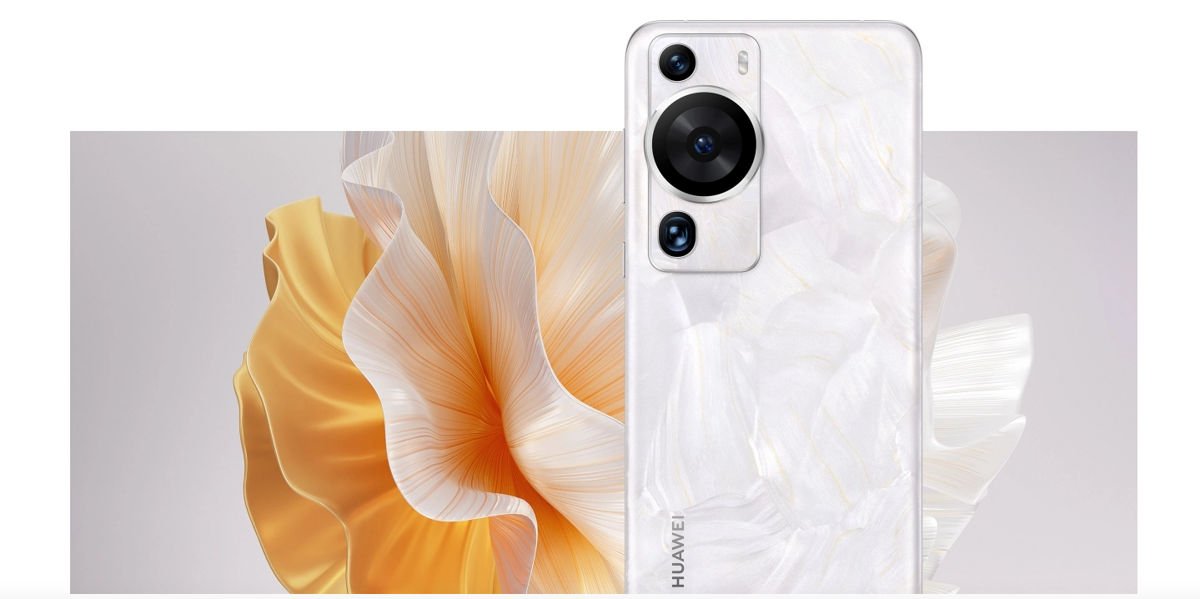
The Huawei P60 Pro is a solid phone, but it’s missing something pretty important: Google Play. Thanks to US trade restrictions, Huawei can’t ship their devices with Google services anymore.
Good news though. You can get the Play Store running on your P60 Pro in roughly 20 minutes. This works on global P60 Pro models with EMUI 14.2 or later. If you bought your phone in China, it’s probably running HarmonyOS instead, and this won’t help. We’re using microG Services (basically a stand-in for Google Play Services) plus Aurora Store to download apps. Got a different Huawei? Check out our guides for the regular P60 or Pura 70 lineup.
What You’ll Need
First things first: your P60 Pro needs EMUI 14.2 or newer. Head to Settings > About phone to check. You’ll also need to allow app installations from sources outside the official store.
Get microG Services
- Launch Huawei AppGallery on your phone
- Type “microG” into the search
- Find “microG Services” and hit Install
- The installation grabs “microG Companion” automatically, so wait for both to finish
Set Up Permissions
- Open Settings and navigate to Apps > Apps
- Find “microG Services” in the list
- Go into Permissions and approve everything it asks for (you’ll see Location, Storage, Phone access)
- Back out and locate “microG Companion”
- Open its Permissions, select Location, then pick “Allow only while using the app”
Connect Your Google Account
- Find microG Services in your app drawer and open it
- Hit the gear icon at the top right
- Switch on “Google device registration”
- Select “Add Google account” and then “Sign in”
- Type in your Google login details and work through the prompts
Quick heads up: you’re logging into Google via an unofficial app. Not comfortable with that? This method won’t be for you. That said, microG’s been trusted in the Android modding scene for years. Plus it’s open-source, so anyone can inspect the code.
Get Aurora Store Running
- Exit microG and go back to Huawei AppGallery
- Look up “Aurora Store” and download it
- Launch Aurora Store after it installs
- Pick anonymous sign-in or use your Google account
- Start searching for Google apps you need (Gmail, Maps, YouTube, Chrome, whatever)
Make Sure Everything Works
- Launch microG Services and check the “Self-Check” area
- Everything should have green checkmarks (red means you missed a permission somewhere)
- Grab Gmail or Maps as a test
- Open it and confirm it actually runs
If Something’s Not Working
Apps acting weird? Restart your P60 Pro and verify microG has all its permissions. Aurora Store refusing to install stuff? Go to Settings > Apps > Aurora Store > Permissions and make sure it’s got full access.
The microG plus Aurora Store combo is your best bet for getting Google services on EMUI 14 phones right now. Sure, Google and Huawei don’t officially support this, but tons of P60 Pro users are running this setup without issues.
Looking for other options? We’ve got a guide on Googlefier for older Huawei devices, but that only works if you’re still on EMUI 10 or earlier.
