

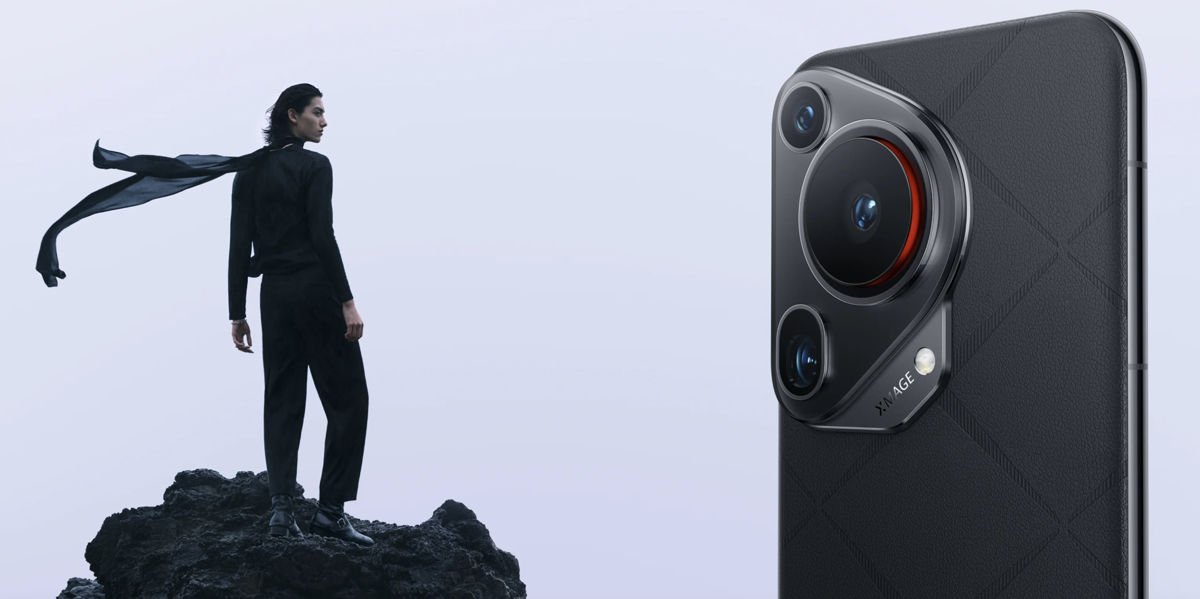
Look, the Huawei Pura 70 Ultra is a beast of a phone. Seriously impressive hardware. But there’s an elephant in the room: no Google Play. Thanks to the whole US-China trade situation, Huawei can’t include Google services anymore.
Here’s the good news: you can work around it. Takes about 20 minutes, maybe less if you’re quick. This guide covers the global Pura 70 Ultra models running EMUI 14.2 or newer. Chinese models use HarmonyOS, so this won’t work there.
We’ll be using microG Services and Aurora Store. Before we start, head to Settings and make sure you can install apps from unknown sources.
Getting microG Services Running
First up is microG. Think of it as a Google Play Services clone that tricks apps into thinking the real thing is installed.
- Open the Huawei AppGallery and search for “microG”.
- Install “microG Services”. This automatically grabs “microG Companion” too.
- Wait for both to finish installing.
Now for permissions. Go to Settings > Apps, find “microG Services”, hit Permissions, and allow everything it asks for. Location, Storage, Phone, the works. Repeat this for “microG Companion” as well.
Connecting Your Google Account
Time to link your Google account.
- Open microG Services (check your app drawer).
- Hit the gear icon up top.
- Turn on “Google device registration”.
- Tap “Add Google account” then “Sign in”.
- Enter your Google login info.
Real talk: you’re signing into Google through an unofficial app here. If that bothers you, this method isn’t going to work for you. But microG has been around for years and the Android modding community trusts it. It’s also completely open-source if you want to check the code yourself.
Aurora Store Setup
Aurora Store is basically an unofficial Play Store client. It pulls apps directly from Google’s servers.
- Close microG and go back to AppGallery.
- Search for “Aurora Store” and install it.
- Open it and either sign in with your Google account or go anonymous.
That’s it. Aurora Store looks and works like the regular Play Store. Search for apps, download them, update them. All the usual stuff. You can grab Gmail, Maps, YouTube, whatever Google apps you need. For more details on installing the Play Store itself, check out our other guide.
Make Sure It’s Working
Quick check before you start downloading everything:
- Open microG Services and look at “Self-Check”. All green checkmarks means you’re good.
- Any red marks? Go back and grant those permissions.
- Download a Google app to test. Gmail works well for this.
- Open the app and see if it runs properly.
If something’s not working, restart your phone and double-check the microG permissions. For Aurora Store issues, verify it has all permissions enabled under Settings > Apps > Aurora Store > Permissions.
Most Google apps work fine with this setup. Maps, YouTube, Gmail, Chrome should all run normally. The Pura 70 Ultra’s satellite messaging feature still works too, so you’re not losing any of Huawei’s unique features by adding Google services.
