

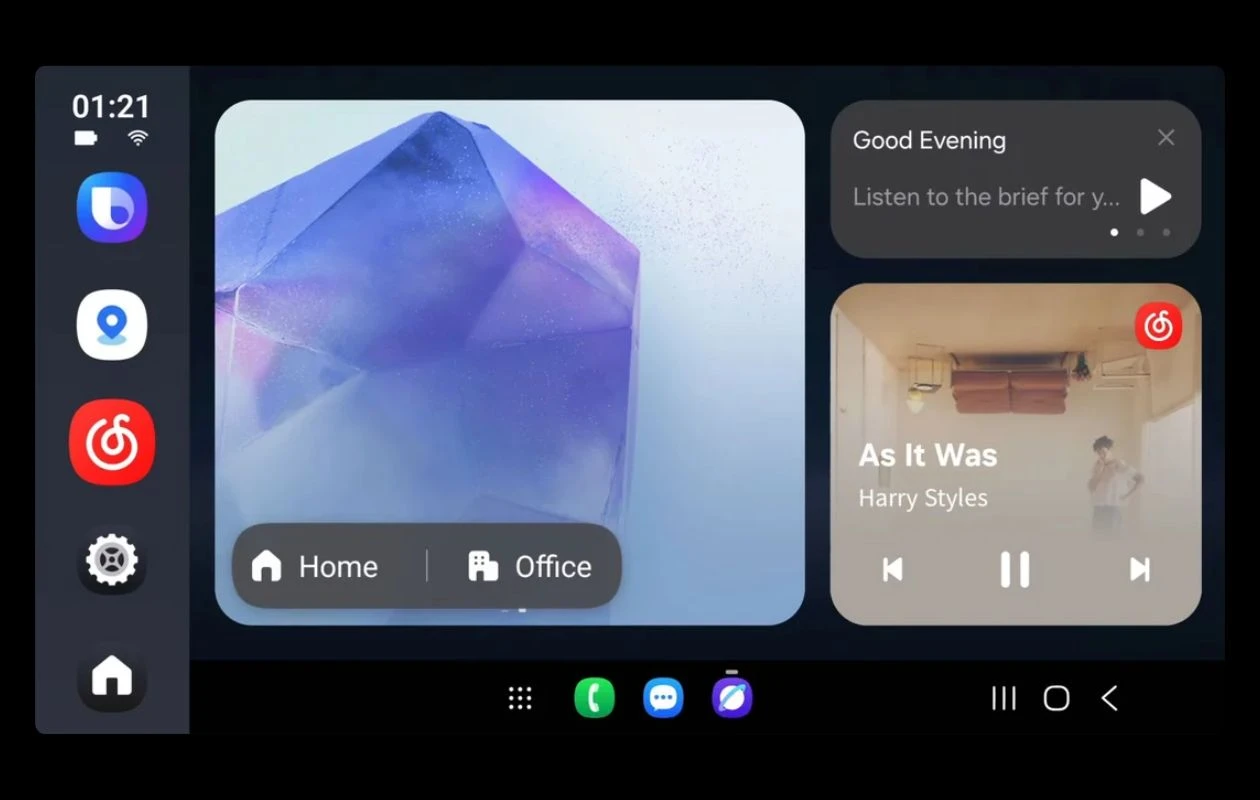
Most modern cars now come with either Android Auto or Apple CarPlay as their infotainment system. Now, both options are pretty good and work best depending on the device you use. A good infotainment system with support for Android Auto and Apple CarPlay allows you to play music, utilize navigation, and even make and receive calls without needing to touch your smartphone.
While these two are the best, did you know that there is even a third option now available for you to check out? Yes, there is now a third option called Samsung Auto. If this is something you are hearing for the first time, do not worry, as I will be breaking it down for you to know everything about Samsung Auto.
Additionally, there is also something called Samsung Auto + DeX. Yes, this is also a thing, and just like Samsung Auto, if you have no clue what’s going on, you’ve come to the right place to get up to speed about new car infotainment software. Let’s get started.
Samsung Auto: What Is It?
Samsung Auto is basically an alternative to Google’s Android Auto. Samsung Auto is only compatible with Samsung’s Galaxy lineup of smartphones. Also, Samsung Auto is only officially available in China. The functionality is similar to Android Auto, but it has a few features that work best with users who own and use a Galaxy smartphone. Let’s take a look.
Samsung Auto: Unique Features
Even with Samsung Auto being limited to China, the infotainment OS has a number of features that make it stand out.
Smart Location-based Navigation
Samsung Auto can easily pick up addresses from text messages sent to your Galaxy smartphone and prepare a navigation route right away. Thai can be achieved with a single tap on your car’s infotainment system, completely removing the need to use voice controls and also removing the need to manually enter the address.
Quick Voice Command Actions with Bixby
Samsung’s voice assistant Bixby works well with devices that are within the Samsung ecosystem. This means you get to use various Bixby commands and functions that are generally not available to use with Google’s Android Auto and Google Assistant.
Customizable Dashboard
Having a good interface with all the apps easily accessible is important. But what’s more useful is the option to customize the dashboard with app shortcuts of your choice, which makes it easy for you to access features you want instantly.


Why is Samsung Auto Popular in China?
Samsung Auto is successful in China simply because its biggest competitor, Google’s Android Auto, is not available in China, which gives Samsung Auto an advantage and also gives users with Galaxy smartphones better in-car connectivity.
So, is Samsung Auto available globally? Can you use it in your car? Do cars globally have Samsung Auto? Well, the answer to all of these questions is no. Samsung Auto is not available globally yet, but who knows, someday Samsung might just decide to make it available globally as and when they feel the time is right.
What Devices can be used with Samsung Auto?
Samsung Auto is available on all Galaxy smartphones that are sold in China. The software requirements are that these Galaxy smartphones need to be running One UI 7 or newer. If you have a Galaxy smartphone that has been imported into China, you will not be able to use Samsung Auto.
Moving over to vehicle support, Samsung Auto can be used with cars that are equipped with Baidu CarLife+ or ICCOA Car Link. A lot of whiles in China come with either of these right away, which means you can use Samsung Auto right away as long as you have a Galaxy smartphone.
While Samsung Auto is interesting in its own way, it’s a bit shameful that it’s not available globally. Now, at the start, we did make a mention of Samsung Auto+DeX, so let’s dive into what it is and how you can use Samsung Auto+DeX in any part of the world.
Samsung Auto+ DeX: What Is This?
Let’s now talk about this other thing called Samsung Auto+DeX. One thing you need to note about Samsung Auto+DeX is that this is a workaround to get, or rather, an alternative way to get access to the official China-only Samsung Auto. With Samsung Auto+ DeX, you get to take advantage of the Samsung DeX feature that makes use of the Samsung DeX desktop feature, which feels and looks similar to the interface you would find with Samsung Auto in China.
Also, a side note, Samsung Auto+DeX is not an official feature that has been released by Samsung, so don’t go looking around for it on Samsung’s forums or look for customer support to help you with Samsung Auto+DeX. So, pay careful attention to the steps that we have provided below if you plan to make use of this feature.
How to Download Samsung Auto+DeX
Now, before we get into installing and using Samsung Auto+DeX, you will have to first get the APK files. You will need the following APK files
- CarLife+ Component Plugin APK
- CarLife Receiver APK
- Samsung Auto APK
You can easily get these files by downloading from this SourceForge link that has been created by AndroidSage. Make sure to download the CarLife+ Component Plugin APK and the Samsung Auto APK file to your Galaxy smartphone that is running on One UI 7 or newer. Meanwhile, the CarLife Receiver APK should be downloaded and installed on the device or the car’s head unit, which you plan to use Samsung Auto+DeX with. Make sure that the car head unit or the display that you plan to use, Samsung Auto+ Dex, lets you install APK files directly to the device.

How to Install Samsung Auto+DeX
Before installing the APK files on your Galaxy smartphone, make sure that you have Developer Mode enabled to have the Force Desktop Mode option. Here are the steps to enable Developer Mode and Force Desktop Mode
- Open the Settings app on your Galaxy smartphone and scroll to the very end.
- Tap on About Phone followed by Software Information.
- You need to tap 7 times on the Build Number option. A small toast notification will appear on your screen stating that you are now a developer.
- Navigate to the main screen of the settings app, and you should see the new Developer Options right away.
- With the Developer Options toggle enabled, scroll down and tap on Force Desktop Mode.
- Once you have enabled this option, your Galaxy smartphone will reboot.
With this done, make sure that you have the Samsung Auto and CarLife+ apps installed because the next step will be to enable Samsung Auto. Here are the steps
- Open the Settings app on your Galaxy smartphone.
- Tap on Connected Devices, followed by Samsung Auto.
- Make sure that the toggle for Samsung Auto has been enabled.
Install CarLife+ Plugin
With Samsung Auto now enabled on your Galaxy smartphone, it’s time to install the CarLife Plugin. Here’s what you need to do.
- Open the Settings app and tap on Connected Devices.
- Now, tap on Samsung Auto, followed by Connected Car.
- Tap on Baidu CarLife+. You will see a pop-up asking you to install the plugin for a complete Samsung Auto experience.
- You need to enable Wi-Fi hotspot on your Galaxy smartphone, and make sure that you have enabled the 5GHz band for the Wi-Fi hotspot.
- Additionally, you will have to connect your Galaxy smartphone to the car’s head unit or device that you plan to use Samsung Auto with via Bluetooth.
- Make sure to install the CarLife Receiver app on the car unit or device that you plan to use Samsung Auto with.
- Once the app is installed, make sure that both your smartphone and your device or car unit are connected and the necessary apps are installed.
- Launch the CarLife app on your car head unit or device to establish a connection via Wi-Fi to start Android Auto.
All you need to do now is start Samsung Auto on your smartphone, and it should power up your car’s head unit with Samsung DeX right away. With DeX enabled on your car’s head unit, you can launch and use whatever app you like, yes, this also includes apps from Google services such as Google Maps, YouTube, and whatever app you want. Of course, Samsung’s first apps will also work right out of the box.
If, for some reason, you have trouble or issues with connectivity and basic functioning of Samsung Auto+DeX, you can always use the wired connection method to use Samsung Auto+DeX and continue with it on your car’s head unit or even any other device that has Wi-Fi, Bluetooth, and the ability to install APK files.
Alternate Way for Samsung DeX in your Car
Now, we can understand that not everyone might be interested in sideloading the apps and running through the workarounds to get Samsung Auto+DeX on your car unit. So, for those users who just want a simple plug-and-play option or even for those users who have cars whose head units are not the latest ones, there is something that you can make use of.
You can easily purchase an AutoProX Wireless Android Auto with a Samsung DeX plugin device. Yes, this device is a bit on the pricey side of things at $98.99, but it is perfect for those users who use a lot of Galaxy devices that have support for Samsung DeX.
To use this device, you simply need to plug it into the car’s head unit via the USB port and use your Galaxy smartphone to search for the wireless Samsung DeX device. Once you are connected, you can use Samsung DeX wirelessly on your car’s head unit. There’s a great YouTube video by the YouTube channel Tech with Benefits.
Closing Thoughts
This concludes everything you need to know about Samsung Auto and also Samsung Auto+DeX. What are your thoughts about Samsung Auto? Do you think Samsung should bring this feature globally and have support for popular head units out there? Share your thoughts in the comments section below.
Related Articles:
