

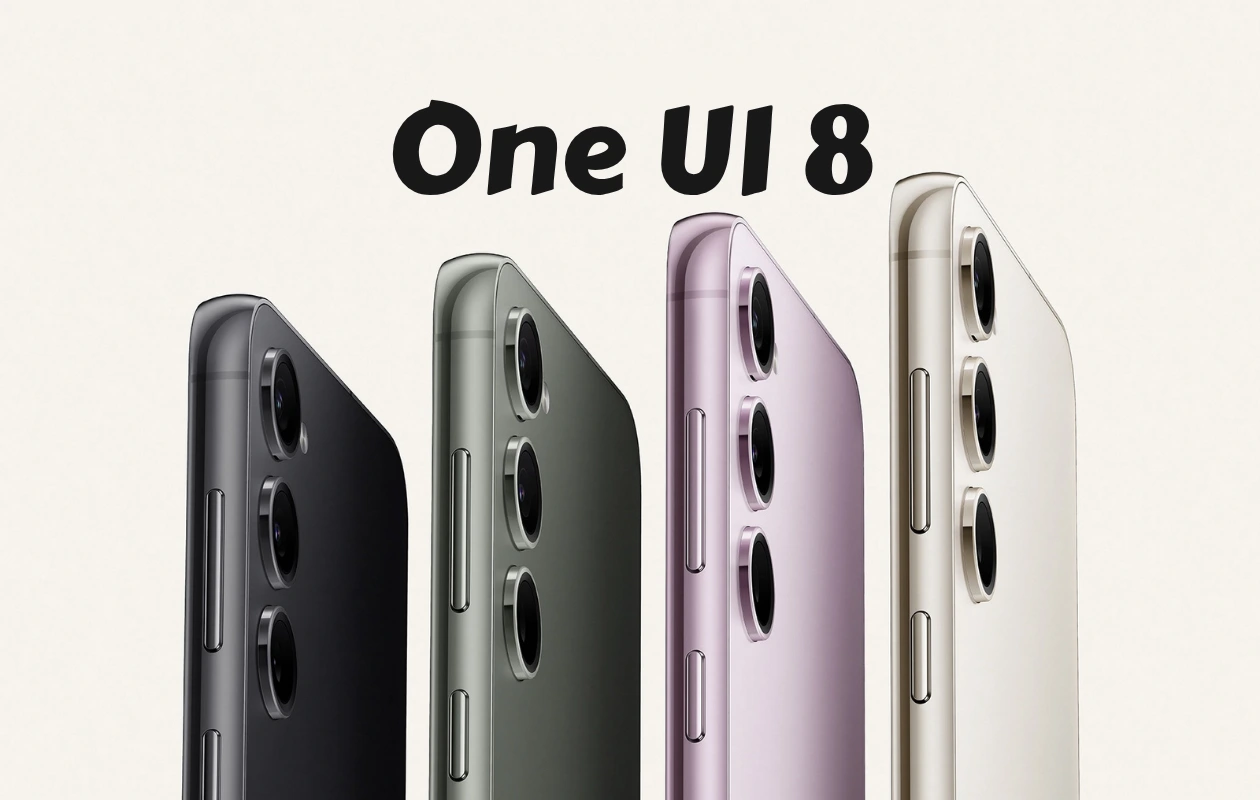
Samsung kicked off the stable One UI 8 update for the Galaxy S23 in Korea last week. This week, the company has commenced the release of the update in other regions. Galaxy S23, Galaxy S23+, and Galaxy S23 Ultra users have now begun receiving the stable One UI 8.
The One UI 8 update for the Galaxy S23 might also be rolling out in other regions, but we haven’t received any confirmation yet. Even if it hasn’t started rolling out in other regions yet, it will soon.
In India, the update is rolling out with build number EYI5, which is available to both beta and non-beta users. This major update weighs over 3GB for users on One UI 7. The update still includes the September security patch.
Talking about new features, the One UI 8 update introduces several new features and enhancements. These include an adaptive lock screen clock, enhanced animations, find downloaded files instantly, redesigned stock apps, enhanced split screen, new preset routines, quick camera controls, and more.
One UI 8 Update for Galaxy S23 Changelog
Below, you can find the complete changelog from the One UI 8 update for Galaxy S23.
Productivity
- Easier file sharing with Quick Share: It’s never been easier to send and receive files. Tap the Quick Share button in quick settings to get started. You can receive files while the Quick Share screen is open and send files to others directly from Quick Share.
- Easily find downloaded files: Find the file you need quickly even if you don’t know the file name. You can now filter files based on the app that was used to download them. Works in the Downloaded and Recent views in My Files.
- Redesigned Samsung Internet: Access the features you need quickly. The Samsung Internet menu has been optimized to make it easy to access the features you use most. You can also customize the layout to match your personal preferences.
- More convenient Al select: No more waiting. When you start Al select, you can now select an area of the screen immediately.
Multitasking
- Enhanced display support: The new Samsung DeX gives you more options when connected to an external monitor or TV. You can choose an optimized display resolution up to WQHD and rotate the display 90, 180, or 270 degrees.
- Enhanced split screen view: While 2 apps are open in split screen view, you can push one app against the edge of the screen to keep it partially visible while giving most of your focus to the other app. Tap the smaller app quickly.
Reminder
- New Reminder interface: The Reminder app has been redesigned with categories shown at the top of the screen, making it easier to see how many reminders are in each category with a quick glance. Custom categories can be hidden with a quick: tap to free up more screen space. Tap one more time to make them appear again.
- New sample reminders: Discover the power of reminders. Sample reminder templates are now available in the Reminder app. Explore these reminders to see what you can do to manage important tasks in your life.
- Add reminders easily: It’s never been easier to add new reminders. Just type your reminder into the box at the bottom of the screen. Suggestions will appear as you type that you can tap to save time. You can add checklists, locations, and pictures using the buttons below the text box. Or, if you don’t want to type at all, tap the Mic icon for voice input.
Calender
- Manage reminders in Calendar: You can easily create reminders in the Calendar app without opening the Reminder app. Whenever you tap the + button, you’ll have the choice of adding an event or a reminder. You can also drag and drop reminders on your calendar to reschedule them.
- Add events quickly: When you start adding an event in the quick add menu, you’ll get suggestions for event names and times based on your past events. Just tap one of the suggestions to add an event without additional typing.
Modes and Routines
- New preset routines: Check out the new preset routines for weather and other advanced conditions. Use them as they are, or customize them to meet your needs.
- New routine actions: New actions are available for getting data from the Clock, Calendar, and Samsung Notes apps. After you get data, you can use it in other conditions or actions in your routine.
Samsung Health
- Running distance challenges: In addition to step challenges, you can now challenge your friends to see who can run a certain distance the fastest. For example, set a target of 50 km and see who gets there first.
- Food recording reminders: Stay on track to meet your calorie goals. You can now set reminders for recording your food intake in Samsung Health.
Communication
- Improved profile cards: It’s easier to create and edit your profile card to get the perfect layout for your name and picture. After creating, you can share your profile card so other people can see it when you call them.
- Review recorded calls in Contacts: It’s now easier to review your past conversations. Calls you’ve recorded now appear on the contact history screen.
Camera
- Swipe up or down to open quick controls: Access quick controls in Camera even quicker than before by swiping up or down anywhere in the preview area. In Camera settings, change the Swipe up/down option to open quick controls.
Security and Privacy
- Enhanced Secure Folder: Keep sensitive apps and data in a separate, protected area of your phone. You can now set Secure Folder to hide apps and prevent notifications when you lock it. You can also completely hide and encrypt your Secure Folder for maximum protection.
Accessibility
- Pinch and zoom with the Assistant menu: The Assistant menu now provides more ways to zoom in and out on the screen. In addition to dragging with one finger, you can now adjust the zoom level by pressing buttons on the screen.
- Control mouse actions with your keyboard: If you can’t or don’t want to use a mouse, turn on Mouse keys in Accessibility settings to use your physical keyboard to move the mouse pointer, click, hold, and scroll.
- Magnify your keyboard: You can now make the keys on the on-screen keyboard larger so they’re easier to see and tap. Turn on Magnify keyboard while typing in Magnification settings to try it.
- Easily pair Bluetooth hearing aids: You can now pair and connect your Bluetooth hearing aid devices directly on the Hearing aid support screen in Accessibility settings.
Even More Improvements
- Revamped weather visuals: The Weather app now provides more rich and realistic images to help you intuitively understand the current weather conditions.
- Easily connect to Auracast broadcasts: Auracast allows you to broadcast audio from one device to multiple listening devices at the same time. It’s now easier to connect to Auracast broadcasts by simply scanning a QR code. You can also generate a QR code to let others connect to your broadcast.
- Enhanced alarm groups: You can now add existing alarms to an alarm group by tapping the + button on the Alarm group screen. You can also add an alarm group to a widget on your Home screen so you can turn all of the alarms in the group on or off with a single tap.
- Get quicker support: Enjoy quicker check-ins when you visit Samsung service centers. You can use NFC or scan a QR code to share basic information such as your name and phone number with staff without filling out any forms. Your data is encrypted and can only be accessed by Samsung support staff.
The stable One UI 8 update is rolling out for Galaxy S23 devices in batches through OTA updates. If you haven’t received the update yet, it will soon be available on your device. You can check for the update by going to Settings > Software Update > Download and Install. Make sure to back up important data and charge your device to at least 50% before installing the update.
The Android 16-based One UI 8 is the third major update for the Galaxy S23 out of the four promised. This means that the device will receive at least one more update, specifically the Android 17-based One UI update.
Related Articles:
