

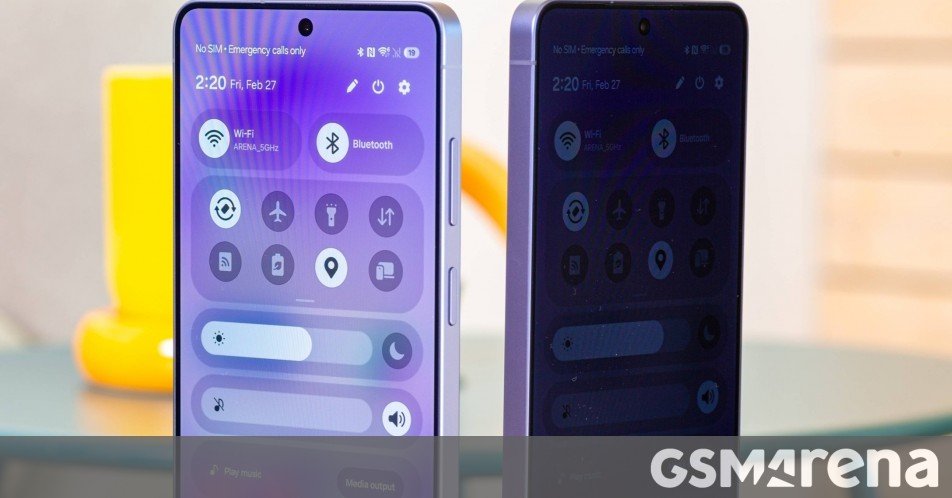
Samsung unveiled the Galaxy S26 series last week, which includes the Galaxy S26, Galaxy S26+, and Galaxy S26 Ultra. The S26 Ultra is the top-end model in the lineup, and one of its headline features is the Privacy Display.
The Privacy Display is advertised as a zero-peek feature that makes it hard for others to see the contents on the Galaxy S26 Ultra’s display when viewed from an angle. If you are wondering how exactly the Privacy Display feature is implemented and works, we’ve got you covered.
Samsung Galaxy S26 Ultra Privacy Display examined
The Privacy Display feature may not affect brightness by default, but things change once you turn it on. We discovered that with Privacy Display enabled, the maximum brightness is halved across all scenarios, which makes sense given how the tech works.
The way the feature is implemented is by applying a hardware filter on half the pixels, which are now separated into two groups – Narrow Pixels and Wide Pixels. The Narrow Pixels emit light directly forward, while the Wide Pixels, as the name implies, emit light at a wider angle. From what we understand, the Wide Pixels are your standard pixels, whereas the Narrow Pixels have a taller “wall” around them for lack of a better word, which makes them harder to see at an angle.
Samsung Galaxy S26 Ultra 5G
So when the Privacy Display toggle is turned on, the Wide Pixels’ brightness is reduced significantly. Maybe even turned off by what we see under a microscope. So it’s no surprise that when half of the pixels don’t work, peak brightness is halved. Still, around 800 nits on Samsung’s DX anti-reflective screen provides good enough outdoor visibility, even on a bright sunny day.
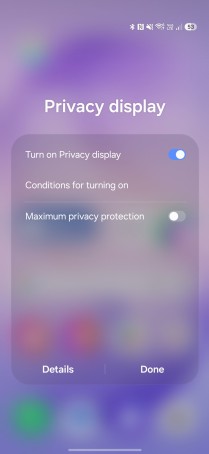

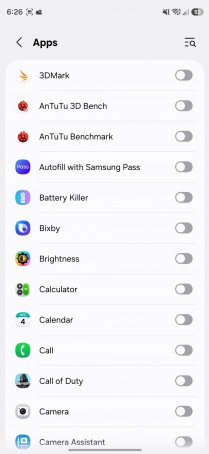
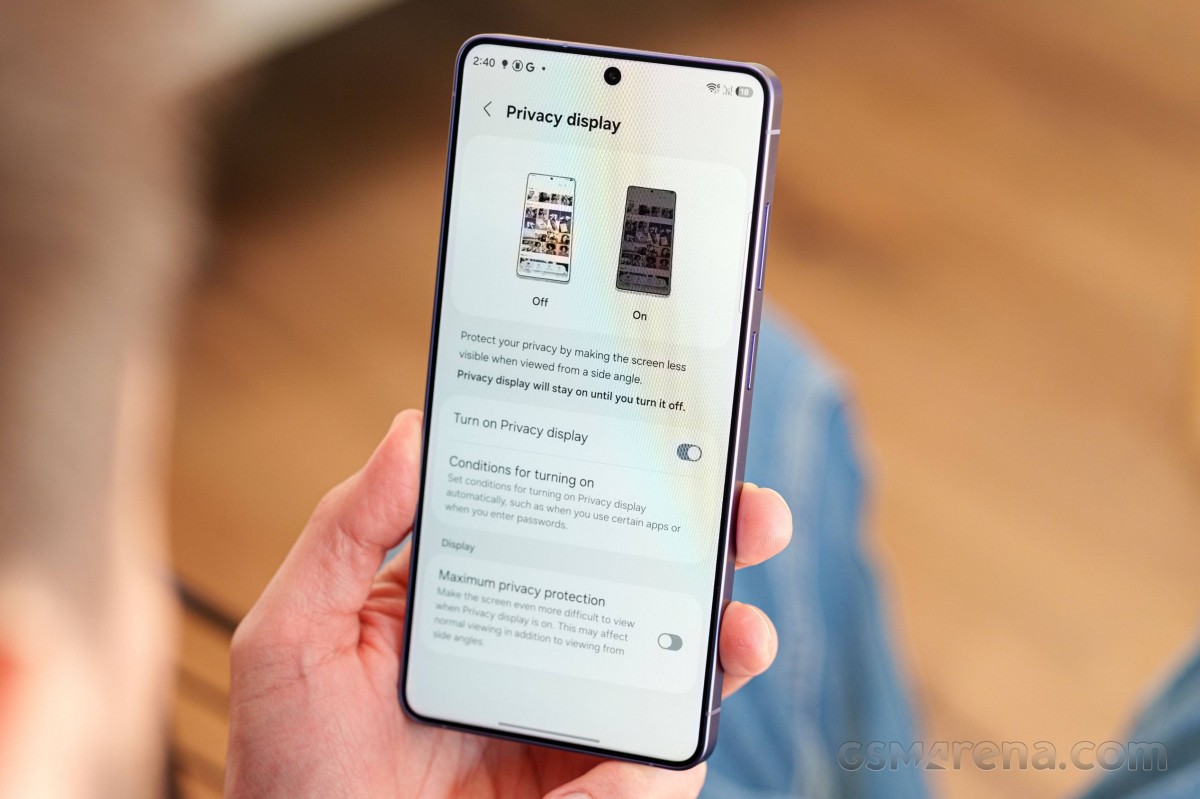
Privacy Display options
The pixel density also drops when you turn off these pixels, as evidenced by the OLED panel photos we took under a digital microscope. You can clearly see that fewer pixels light up with the Privacy Display ON. We’ve also added a photo of the Galaxy S25 Ultra’s display panel for more context.
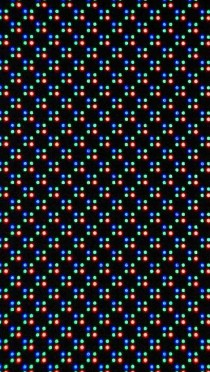
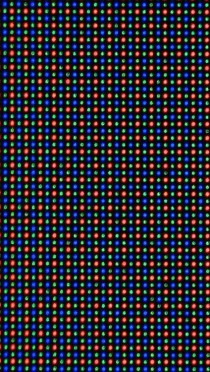
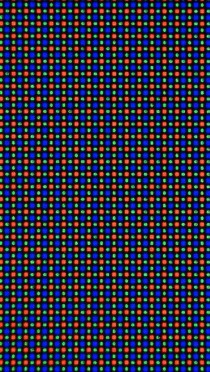
Galaxy S26 Ultra Privacy Display On • Galaxy S26 Ultra Privacy Display Off • Galaxy S25 Ultra
The real magic of the Privacy Display feature is that it can work on specific areas only, unlike a privacy screen protector, for instance. You can turn it on only for incoming notifications, so pop-ups will be hard to see from someone standing next to you. The system recognizes PINs, passwords, and patterns and activates the Privacy Display only for those fields. Unfortunately, the feature works only in system apps and on the phone’s lock screen. Support for third-party apps in the future is expected.
Speaking of third-party apps, you can set Privacy Display to turn on only in select apps. It works with Routines as well. For example, you can set Privacy Display to turn on only when you are at the office or at a certain time every day.
You also have a Maximum Privacy Display toggle, too, which also affects contrast and color reproduction. Blacks, for example, become gray, and contrast falls off a cliff. It makes it much harder for anyone to stare at your screen, but since it affects the viewing experience so much, we wouldn’t say it’s meant to be used all the time.
Now, while the functionality seems cool and useful, it’s not “amazing”. In the standard Privacy Mode, you can still roughly see what’s on the screen at an angle. The Maximum Privacy setting is what makes it really “private”, although the viewing experience is severely affected.
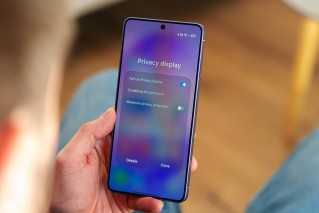
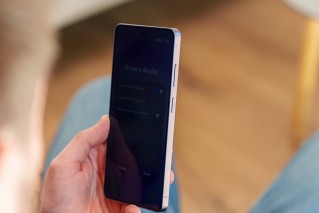
Privacy Display: Straight On • At an angle
When the feature is turned off completely, the visual experience is not compromised at all, even if we compare the screen to the S25 Ultra’s. Color reproduction, brightness, and viewing angles are all virtually identical to the previous generation’s screen.
We saw early reports online that there is a difference in perceived sharpness and definition. Still, after carefully comparing the screens of the S26 Ultra and S25 Ultra, we can definitely say that’s not the case – at least with Privacy display turned OFF, which is its default state.
If you are interested to learn more about the Galaxy S26 Ultra’s display and other features, you can head this way to read our in-depth Samsung Galaxy S26 Ultra review, where we’ve talked about the flagship’s performance across all departments.
