

If you want to watch movies, listen to music, or view documents on your Android TV or Google TV without the Internet, then you need to transfer the required files to your smart TV. Luckily, there are some workarounds that allow us to transfer files between a TV and a smartphone. One of the best things about this guide is that you can share any type of files you want. Yes, you can also send APKs to your Android TV.
There are a few different ways to transfer files from a smartphone to an Android TV. Some methods don’t require any app, and some methods require third-party apps. You can also use the cloud services and screen-casting methods. So, in case you want to share APKs, videos, photo albums, or music from your smartphone to smart TV, then you can follow the steps below.
Now let’s check out all the convenient methods to share files to Google TV.
Transfer Files from Phone to Google TV using Pairdrop
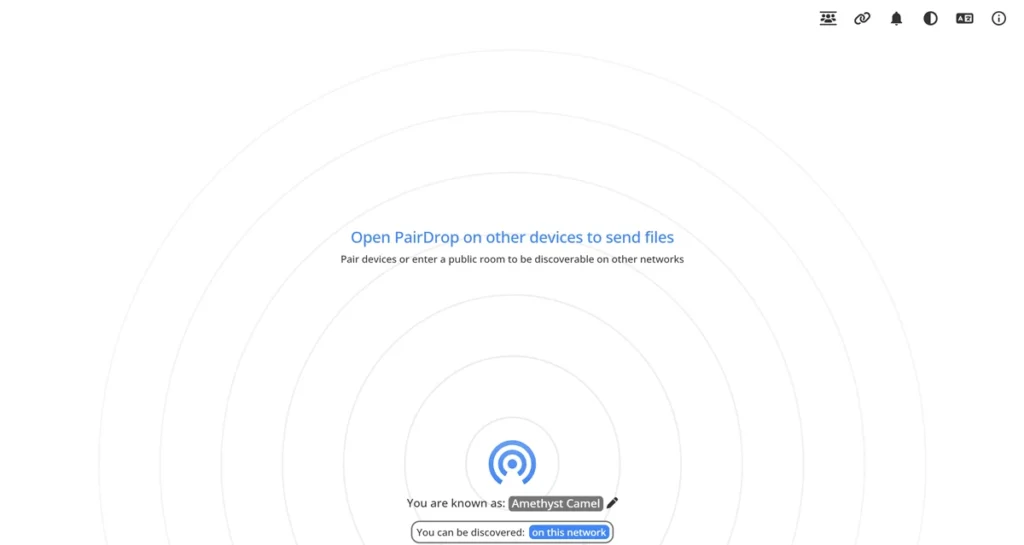
Pairdrop service is inspired by Apple’s well-known AirDrop service. And fortuitously, we can use it to transfer files from smartphones to Android TV. If you want to use Snapdrop to share files, then make sure to connect your smartphone and TV to the same Wi-Fi network. It’s one of the best online file-sharing platforms. It’s a web-based service, so there’s no need to sideload any app on your TV. You can even use this service to share files from your iPhone/PC to your Android TV. Now let’s take a look at the steps.
- Open the Pairdrop website both on your smartphone (Android or iOS) and Android TV.
- Now you’ll see the recipient (Android TV) on your smartphone, tap on it.
- Then, select the file you want to send to your TV.
- It will start sharing the file between devices, once you’ve received the file on your TV, tap on accept button, it will save the file on your Android TV.
- That’s it.
Transfer Files from Phone to Android TV using Send files to TV (SFTTV)
One of the most famous methods to share files between smartphone and Android TV is, Send files to TV (SFTTV) app. Yes, if your smartphone and TV are connected to the same network connection, then the SFTTV app is all you need. For the time being, the app is available for Android and PC users only. It’s not yet available for iOS. It’s freely available on the Google Play Store, if your Android TV doesn’t have Play Store, you can directly download the APK. After sideloading the app, you can follow the below steps.

- At first, you need to install the SFTTV app on your smartphone as well as on the Android TV.
- Then, open the app on both devices.
- Now tap on Send option on your smartphone to send the file to your TV.
- Next, you need to select the file you want to send to your TV, you can simply choose the file from Internal Storage or SD card.
- Tap on receive option on your TV, once you tap the receive, your smartphone will detect the recipient device.
- Now tap on the recipient device aka your Android TV, once done, it will start sending the file from smartphone to TV.
- That’s it.
Transfer Files from Phone to Android TV using Solid Explorer
Solid Explorer is the known file manager app available for Android smartphones. Apparently, you can even use it to share files between smartphones and Android TV (as well as Android Box TV). The file explorer has an option to create an FTP server, which will show the content available on your smartphone directly on the TV. Talking about the best thing, then iPhone users can also use the Solid Explorer to transfer files from phone to Android TV. The app is freely available on the Google Play Store. Now let’s take a look at the steps.

- Open the Solid Explorer app on your smartphone.
- Tap on the three-dots menu icon available on the top-left corner of your smartphone.
- Then tap on the FTP server option listed under the Toolbox section.
- Here you can simply tap on the start button.
- Once done, open Google Chrome on your Android TV and enable FTP server support from Chrome Flags. You can type chrome://flags under the address bar and then search for the “Enable support for FTP URLs” flag, it will enable the FTP URL support on your browser.
- Now enter the FTP address shown in the Solid Explorer.
- Now you find all content available on your smartphone on your Android TV, which you can download by tapping on the file you want to save on your TV.
- Once all done, you can tap on the stop server button from the Solid Explorer app on your smartphone.
- That’s it.
Transfer Files from Phone to Android TV using Cloud Services
If you’ve unlimited data access, then you can also use Cloud Services such as Google Drive (or Google Photos for albums), OneDrive, iCloud, etc. You can upload the file to your favorite File hosting service and then login with your account on Android TV. Simply locate the file you want to download, that’s it.
Transfer Files from Phone to Android TV using Cast
Cast (aka Mirroring) your smartphone screen is yet another way by which you can watch your smartphone content on your Android TV. It doesn’t transfer the data (files) to your TV. If you want to mirror your smartphone screen, then make sure to connect both smartphone and TV to the same Wi-Fi network. After connecting both devices to the same network, you can head over to the Casting option on your smartphone, then connect your TV to your smartphone. You can also check our guide to know how you can mirror your smartphone screen on PC.
Now you can easily transfer files from your smartphone to Android TV. In this guide, we’ve listed five methods, you can use anyone you want.
If you’ve any query, then you can leave it in the comment section. Also, share the article with your friends.
More Related Articles:
