

Google has recently rolled out the Material 3 Expressive design refresh to many of its apps, and the list of apps receiving this makeover continues to grow day by day. The update is already live for many, including Google Contacts, Google Clock, Google Messages, Google Weather app, and Google Phone.
Google Phone or Google Dialer app is a part of many Android smartphones, and needless to say, it is one of the most used apps on any smartphone. The recent update to the Phone app thoroughly changes the way we use the app.
With the recent update, the Phone app gets three tabs – Home, Keypad, and Voicemail. The update merges the Favorites and Recent into the home of the app. All your favorites are now placed in a carousel. The floating keypad button is gone; instead, you get a keypad tab with larger keys and a call button.
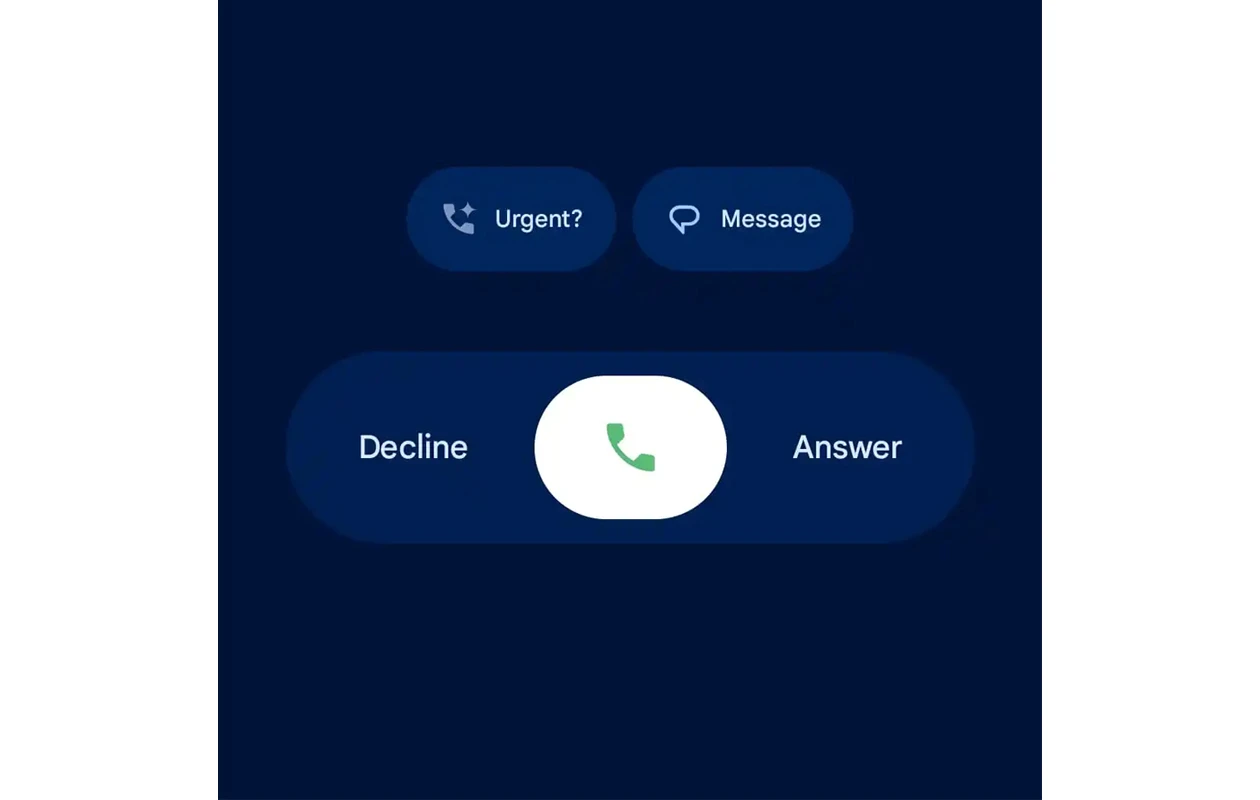
Google has updated the incoming call screen with new swipe controls to accept or reject a call. Additionally, the caller ID gets a larger font. The in-call interface gets an overhaul, too, with the large pill-shaped call end button, large-sized controls for Mute, Keypad, Speaker, and More.
Since the rollout began, many users have expressed concerns about the new design changes. However, these updates are part of Google’s Material 3 Expressive redesign, which is intended to emphasize the most important elements in the UI.
People get used to the swipe up /down gestures, fonts, and other UI elements; some people find the new design ugly. If you are one of those people who dislike these design changes, or if you simply want to revert your parents’ phone back to the old UI for familiarity and easy to use, you’re in the right place.
How to Revert the Old Google Dialer UI Back on Any Smartphone
The easiest way to restore the old UI back on your device is by removing the recent updates. Google Phone is a default app on many phones, you can’t uninstall the app. Instead, you can uninstall the updates and pause future updates to get installed. Here’s how you can do that on your smartphone.
Step 1: Open the Google Play Store on your smartphone.
Step 2: Search for Phone.
Step 3: Select the Phone app by Google.
Step 4: Tap the Uninstall button to uninstall recent updates.
Step 5: Tap the three-dots menu icon at the top right corner.

Step 6: Untick the Auto Update option.

Tip: If you own a OnePlus, Oppo, or Realme smartphone, you can install ODialer from the Play Store, which is the Oppo’s default dialer.
Once done, you can go back to the Google Phone app to check the design changes. That’s it.
Do you like the Material 3 Expressive redesign on other Google apps like the Weather app or the Clock app? Tell us your opinions about the Material 3 Expressive design changes on Google apps in the comment box. Also, share this article with your friends.
Explore More:
