

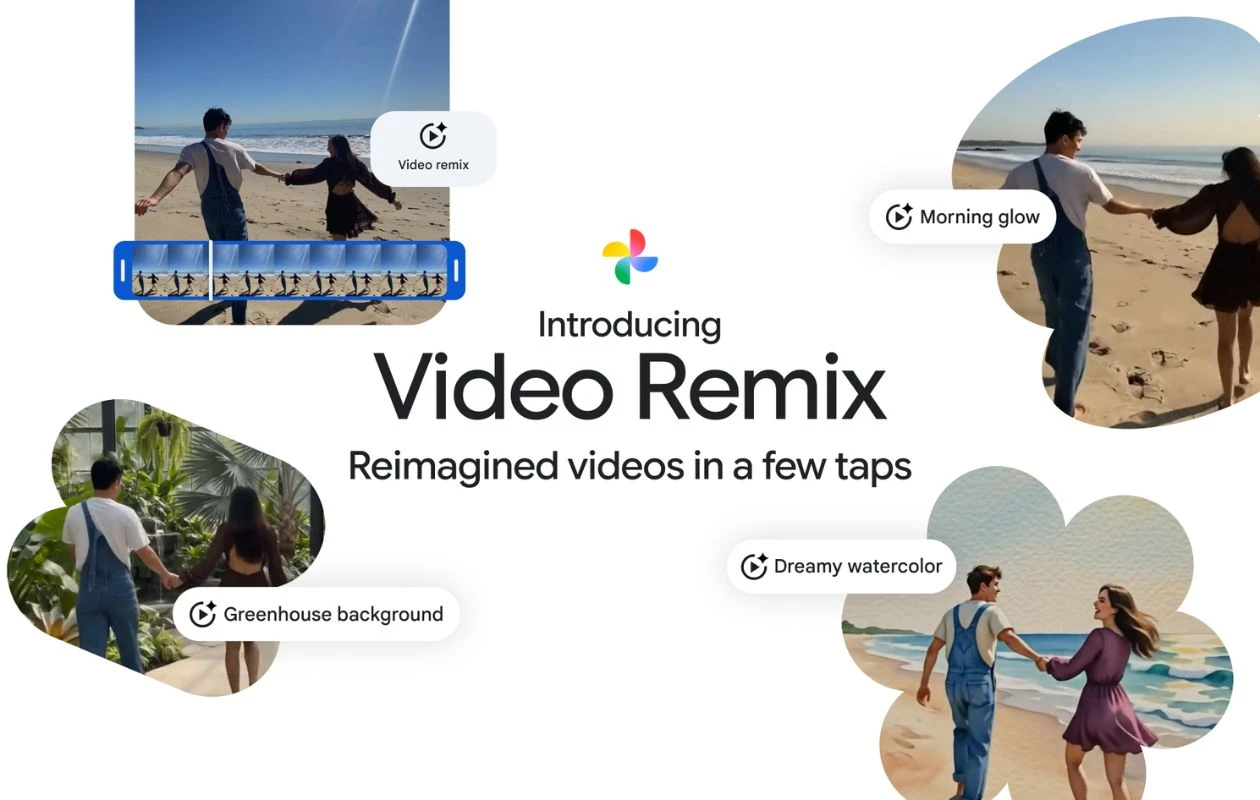
Google Photos comes pre-installed on almost all the Android smartphones sold worldwide. However, it lacks many features and optimizations, especially when compared to the stock Gallery app of OxygenOS, HyperOS, or OriginOS. To fix this, Google has been adding new features, UI changes, and editing tools to the photo manager. In the recent update, the company added a new AI Video Remix tool.
The new AI Video Remix tool is built on the company’s own Gemini Omni model. Instead of manually color grading a clip or trying to swap out a background by hand, you pick a video, choose a style, and let the AI handle the rest.
The results hold up surprisingly well for something that takes just a few taps. It’s not going to replace a professional editor, and it’s not really trying to. But if you just want to turn an ordinary phone clip into something that looks a bit more put together before you post it, it does a solid job. However, while the tool is quite simple to use, there’s a bit of a learning curve involved. To help you with that, here’s our detailed guide on How to Use Google Photos’ New AI Video Remix Tool.
What is Google Photos’ AI Video Remix Tool
The new Video Remix tool is placed inside the Create tab in Google Photos. It sits right alongside the tools for collages, animations, and the Photo-to-Video feature. In layman’s terms, it is a template-based video editor powered by AI. You’re not adjusting colors, lighting, or backgrounds by hand, and you’re not learning any new editing software either. You pick a clip from your library, pick a style you like the look of, and Gemini Omni takes care of the actual transformation on Google’s end.
What comes out the other side is a polished, shareable version of your original video. Getting there takes very little effort on your part. This result usually requires real editing skill and a lot of patience to achieve manually, frame by frame. Google developed this tool for people who want their videos to look more professional without needing to open a full editing app.
How to Access Google Photos’ AI Video Remix Tool
Before we begin, do keep in mind that the AI Video Remix feature is only available to Google AI Plus, Pro, and Ultra subscribers. A free account won’t get you in. Further, it’s currently limited to a set list of countries: the US, India, Japan, Brazil, Mexico, Indonesia, Bangladesh, Pakistan, the Philippines, South Korea, Turkey, Argentina, Colombia, and Egypt.
Step 1: Update Google Photos to the latest available version.
Step 2: Open the Google Photos app and tap the “Create” tab on the bottom bar.
Step 3: On the Create page, click the “Video Remix” button.
Step 4: Here, you will see different video styles and effects. Choose the preferred one and click on “Try It Now.”

Step 5: Select the videos you want to edit or remix and proceed.

Step 6: Let AI do its job. After a few seconds, you will be able to see the video on the screen. You may share or save it directly from the page.
Top Remix Styles You Get With AI Video Remix
1. Cinematic Relighting – This one’s built for footage shot indoors or in dim lighting, where clips often come out looking washed out and grainy. It adds brightness and depth back in, so what you actually filmed doesn’t get lost in the shadows.
2. Background Swaps – Not every video gets shot somewhere photogenic. Maybe you’re recording in front of a bare wall, or your room’s a mess just out of frame. This effect swaps out whatever’s behind you for something more interesting.
3. Artistic Styles – For something less realistic and more creative, this effect runs the entire clip through styles like watercolor, raw sketchbook, or oil painting. It’s less about fixing a video and more about giving it a completely different mood.
Final Verdict
Video Remix is a fun new feature in Google Photos. It’s easy to use without needing to learn anything new. You just choose a clip, select a style, and you’re done.
However, there are some drawbacks. It requires a paid AI plan, and there are daily limits on how many you can create; the results can be inconsistent with fast motion or busy backgrounds. It also won’t replace a dedicated app like CapCut for serious editing. Still, as a quick way to improve an everyday phone video before posting, it’s worth a try.
Read more:
