

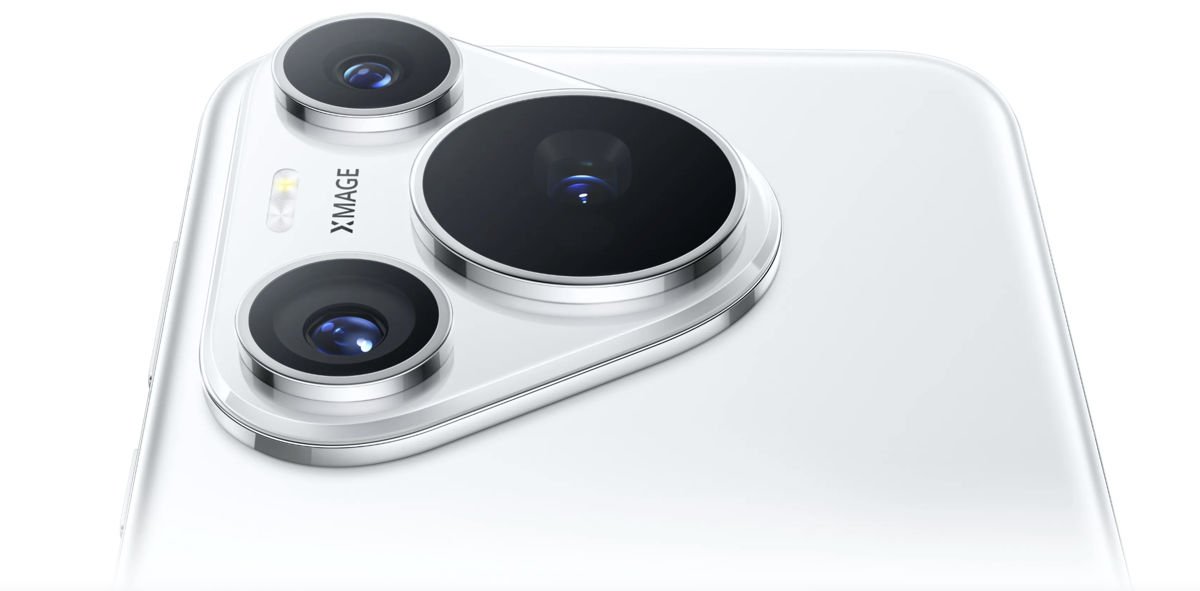
The Huawei Pura 70 Pro is undeniably a powerhouse device, but there’s one obvious omission that might give you pause: Google Play Services. Thanks to ongoing US sanctions, Huawei smartphones ship without official access to Google’s ecosystem. However, if you’re willing to spend about 20 minutes following some straightforward steps, you can get Google Play running on your Pura 70 Pro.
This guide works specifically for the global variant of the Huawei Pura 70 Pro running EMUI 14.2 or newer. Before you begin, you’ll need to enable installation from unknown sources in your phone’s settings. The process involves installing microG Services (an open-source replacement for Google Play Services) and Aurora Store, which gives you access to the full Google Play catalog.
Install microG Services
The first step is getting microG onto your Pura 70 Pro. This open-source implementation allows apps that rely on Google APIs to function properly on your device.
- Open the Huawei AppGallery and search for “microG” in the search bar.
- Look for the app called “microG Services” and tap Install.
- The installation will automatically download and install the “microG Companion” app as well.
- Wait for both apps to finish installing before moving forward.
After installation, you need to grant microG the necessary permissions. Go to Settings, then Apps, and search for “microG Services.” Tap on it, select Permissions, and grant all requested permissions including Location, Storage, and Phone. Repeat this process for “microG Companion” in the app list.
Sign Into Your Google Account
Now you’ll connect your Google account through microG.
- Open the microG Services app from your app drawer (it may not appear on your home screen).
- Tap the gear icon in the top right corner to access Settings.
- Select “Google device registration” and toggle it on.
- Tap “Add Google account” and then tap “Sign in.”
- Enter your Google credentials and follow the on-screen instructions.
Keep in mind that you’re signing into your Google account using a third-party service. If you’re uncomfortable with this, you won’t be able to install the Play Store on your Huawei device. However, microG is widely trusted in the Android community and is completely open-source.
Install Aurora Store
Aurora Store is an alternative app store that accesses Google’s database, allowing you to download apps from the Play Store.
- Close the microG app and return to Huawei AppGallery.
- Search for “Aurora Store” and download it.
- Once installed, open Aurora Store and choose to sign in anonymously or with your Google account.
Aurora Store will now function like the Google Play Store, letting you search for and download apps. The interface is similar to the official Play Store, making it easy to find your favorite Google apps and services like Gmail, Google Maps, YouTube, and Chrome.
Verify Everything Works
Before you start downloading apps, verify that everything is set up correctly.
- Open microG Services and check the “Self-Check” section. All items should show green checkmarks.
- If any show red, grant the necessary permissions.
- Download a Google app like Gmail or Maps to test.
- Launch the app you downloaded to verify it works properly.
If apps aren’t working correctly, restart your Huawei Pura 70 Pro and check microG permissions again. If Aurora Store won’t install apps, go to Settings, then Apps, then Aurora Store, then Permissions and ensure all permissions are granted.
